Creating Powerful Forms in WordPress: A Step-by-Step Guide to WPForms
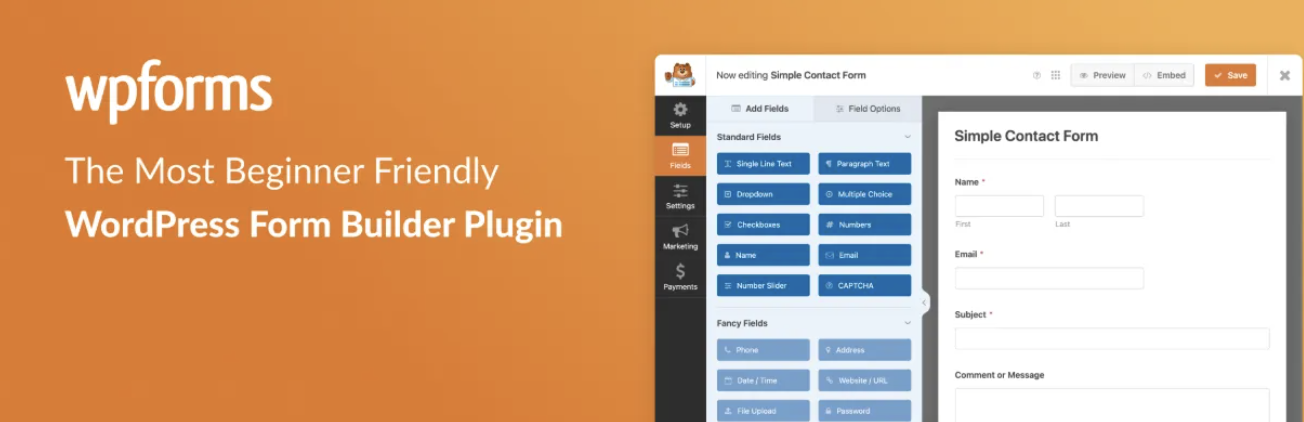
When building a WordPress website, having the right form builder is not just helpful—it’s essential. Whether you're looking to collect contact information, conduct surveys, accept payments, or create registration flows, the forms you use affect both user experience and site functionality.
Among the many WordPress form plugins available today, WPForms has become a trusted name. Known for its intuitive interface and powerful features, WPForms is ideal for beginners and professionals alike. In this comprehensive guide, we’ll walk through how to install, configure, and make the most of WPForms, including key features and important usage tips.
🔧 Installing WPForms: Getting Started
Step 1: Downloading the Plugin
WPForms comes in two versions: a free Lite version available on the WordPress plugin repository, and a Pro version that unlocks advanced features like multi-step forms, file uploads, and payment integration.
If you're looking for a cost-effective way to access the full Pro version, GPLPal offers the GPL-licensed release of WPForms Pro. It includes all professional features and does not require a license key to activate, making it ideal for developers and freelancers who need full access right away.
Step 2: Uploading and Activating
Log in to your WordPress dashboard
Navigate to Plugins > Add New > Upload Plugin
Choose the ZIP file you downloaded
Click Install Now, then Activate
After activation, you’ll see a new WPForms menu item in your dashboard.
✍️ Creating Your First Form
Step 1: Select a Template
Click on WPForms > Add New, then choose a template that suits your goal. The Pro version includes over 1,500 pre-made templates such as:
Simple contact forms
Newsletter sign-ups
Event registrations
Donation forms
Surveys and polls
Templates speed up the process and provide a professional layout from the start.
Step 2: Customize the Form
Using the drag-and-drop builder, you can:
Add or remove fields
Rename labels and placeholders
Rearrange the field order
Apply conditional logic (show/hide fields based on responses)
It’s intuitive and works in real-time, making it easy even for those with zero coding experience.
Step 3: Configure Settings
Each form has options to:
Enable email notifications
Redirect users to a “Thank You” page
Display custom confirmation messages
Limit entries (for event RSVPs or application forms)
Don’t forget to enable anti-spam options like honeypot protection or Google reCAPTCHA.
🌐 Embedding the Form on Your Website
Embedding is simple:
Use the WPForms block in the Gutenberg editor
Paste the shortcode anywhere on a page or post
Insert it via widget in a sidebar or footer
All forms are fully responsive, so they’ll look and function great on mobile devices.
🚀 Exploring Advanced Features in WPForms Pro
While the Lite version covers basic needs, WPForms Pro offers enhanced tools that significantly expand its capabilities:
1. Multi-Page Forms
Ideal for lengthy forms like surveys or job applications. Pages are separated with progress bars and next/back buttons to improve user experience.
2. File Uploads
Allow users to submit documents, images, or videos directly through the form. You can limit file types and sizes to match your needs.
3. Payment Integration
Easily collect payments via PayPal or Stripe. Useful for donation forms, order forms, and even subscription models.
4. Form Abandonment Recovery
Capture partial submissions when users leave mid-way. This helps boost lead generation without increasing traffic.
5. Offline Mode
Forms can save data temporarily when users go offline, then sync when reconnected—great for field agents or low-connectivity areas.
⚠️ Usage Tips and Best Practices
✅ Keep Plugins Updated
Using GPL-licensed versions from trusted sources like GPLPal ensures you always have access to the latest features. But remember: you’ll need to manually download updates and install them.
✅ Test Before Publishing
Always test forms across devices and browsers to ensure fields behave correctly and confirmations are working as intended.
✅ Be Careful With Conditional Logic
While powerful, overusing conditional fields can slow down form rendering, especially on mobile devices.
✅ Watch for Plugin Conflicts
Security, caching, or JavaScript-heavy plugins can interfere with WPForms. If forms aren’t submitting or fields appear broken, disable other plugins one-by-one to identify the conflict.
🎯 Why WPForms Is a Smart Long-Term Choice
What separates WPForms from others like Contact Form 7, Ninja Forms, or even Gravity Forms is its balance between power and usability. It doesn’t overwhelm you with complexity, nor does it limit you with free-tier restrictions.
Whether you’re a site owner who needs a single contact form, or an agency managing dozens of client websites, WPForms adapts to your workflow. The plugin scales easily and performs reliably—even under high-traffic conditions.
🧩 Final Thoughts
WPForms is not just a form builder—it’s a complete system for collecting and managing user data in WordPress. Its drag-and-drop interface, deep customization options, and compatibility with modern business needs make it a favorite among WordPress professionals.
If you're looking to get started with WPForms Pro, but prefer a GPL-compliant version with all features unlocked, GPLPal provides a streamlined option for downloading and installing without the limitations of commercial licensing.
By choosing the right tools and using them responsibly, you’re not just building forms—you’re building trust and functionality into every interaction on your site.


